
Guide
How to plan a trip with ChatGPT and keep the plan
By Akos Orban, the developer of My Next Adventure. It's free to try. Updated .
ChatGPT can find you twenty places to stay in a few minutes. Then they sit in a chat, and choosing between them with the rest of the family is hard. With My Next Adventure added as a custom MCP server, ChatGPT saves every option into a real trip, with its price, dates and link. You can then compare them, show them on the TV and share them.
Setup takes a minute and needs no API key. This is the address you will enter:
https://mcp.mynextadventure.cloud/mcpCheck your ChatGPT plan first
Custom MCP servers that can save things are only available on ChatGPT Business, Enterprise and Edu, on the web, and an admin or owner of the workspace adds them. On a personal Plus plan you can't add a custom server. On Pro you can connect one for reading only, so ChatGPT can't save options into a trip. If that is your plan, the Claude guide works on every Claude plan, including Free. The plans and menu names are from OpenAI's help page, checked on 17 November 2026; they may have changed since.
Step by step
1. Open Plugins in ChatGPT on the web
A workspace admin or owner opens ChatGPT on the web, goes to Plugins, presses the plus button and chooses Add custom MCP server.
2. Enter the address and set up sign-in
Enter a name, for example My Next Adventure, and https://mcp.mynextadventure.cloud/mcp as the endpoint URL under Connection. Under Configure authentication, choose the sign-in option, so that you log in to My Next Adventure instead of pasting a key. No API key is needed.
3. Accept the warning and create the plugin
Read the risk warning, tick I understand and want to continue, and choose Create as a plugin. ChatGPT lists the tools it found.
4. Log in to My Next Adventure
ChatGPT sends you to My Next Adventure. Log in, or make a free account, and approve.
5. Pick it in the chat
Start a new chat, type @ in the message box and choose My Next Adventure. The choice applies to that message, so @mention it again when you want it to save something new.
6. Ask ChatGPT to plan and save
Tell ChatGPT who is going, when, the budget and the deal breakers. Ask it to research the options and save each one into a My Next Adventure trip instead of leaving them in the chat.
7. Review the trip and decide
Open the trip in My Next Adventure. Compare the options side by side, star and cross them off, or press Show on TV to go through them with everyone on the sofa.
What to ask
Once it is connected, plain requests work:
- "Create a trip called Lisbon in May, two adults and two kids."
- "Find five apartments near the beach under €150 a night and save them as options."
- "Make a second variant of the Lisbon trip where we drive instead of flying."
- "What do my two Lisbon variants cost, and where does the difference come from?"
- "Give me a share link for the Lisbon trip so I can send it to the others."
A variant is one complete version of the plan: its own dates, places to stay and ways of getting there. Each variant's costs are added up, so two versions of the trip can be compared on the total.
What made the results better for us
From researching our own family ski week this way (the full story):
- Give it your hard limits first: dates, who is coming with birth years, budget, what is a deal breaker.
- Make it check claims against a map. "Close to the lift" means nothing until you see the walking route.
- Ask for the local booking sites of the area by name, not only the big ones.
- Treat every price without a "book now" button as a question for the owner.
- Check the party size on the saved trip. Ours was first saved with one adult, and the totals looked too good.
What the connector can and can't do
- It can create trips and variants, add destinations, places to stay, transport, getting around and events, pick the winner, and make a read-only share link.
- It can't yet read a pasted link or screenshot into an option, vote, or invite people. Do those in the web app.
- The free plan has one active trip at a time with up to 3 variants, and the connector is included. If you already have an active trip, finish or cancel it first, or ask the assistant to add to it.
Then decide, together
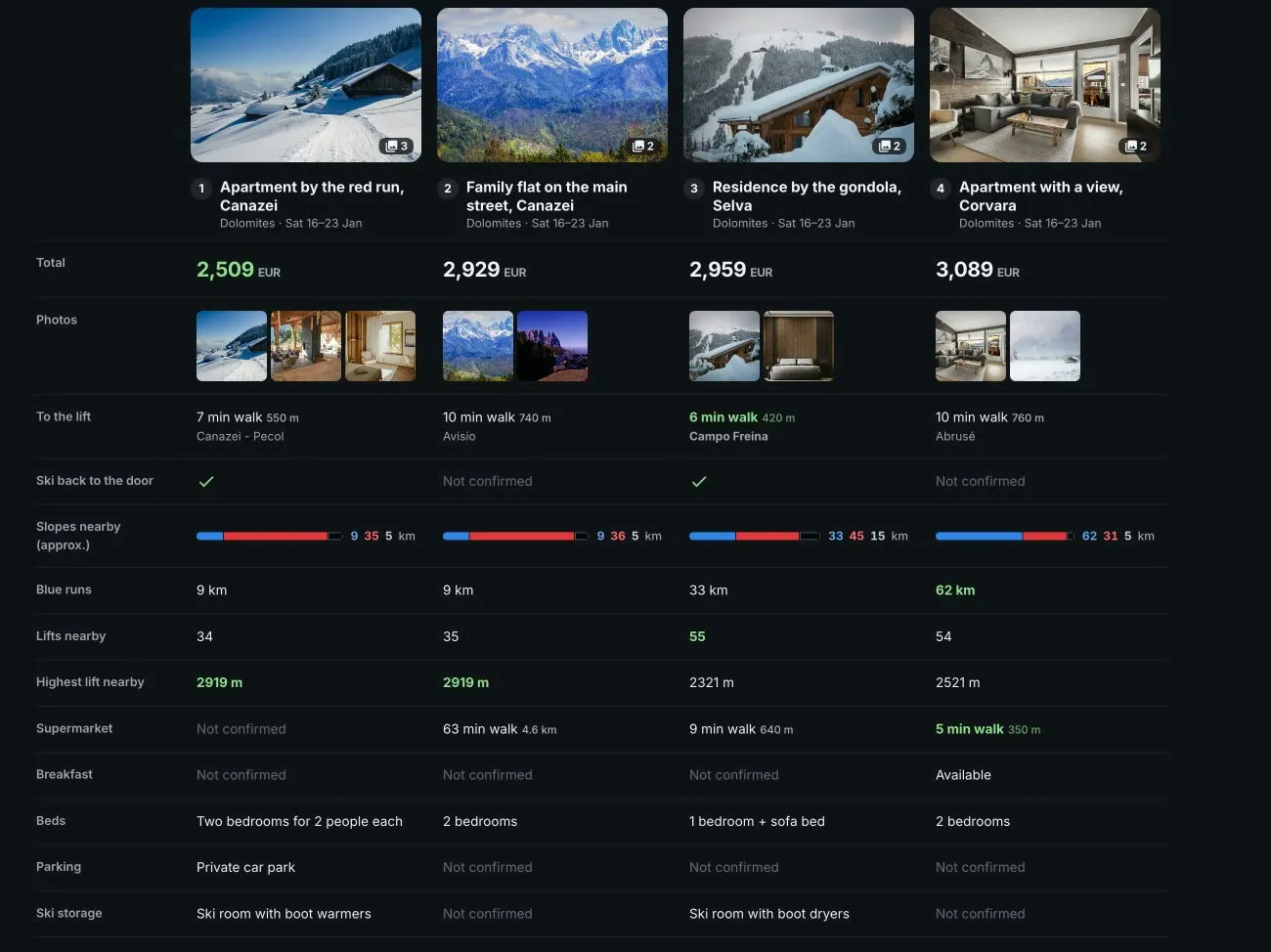
Open the trip in My Next Adventure and go to Review. Every option is on one map with its price. Star the ones somebody likes, cross off the ones nobody wants, and compare the starred ones side by side. Press Show on TV and your phone becomes the remote.
To see it before you connect anything, open the sample trip. It needs no account. More on deciding as a group: stars, votes and the TV.
Using Claude instead? The same guide for Claude. Other clients and the command line tool are on the MCP page.
The sample opens without an account.